
A lot has shipped since our October release notes. This round makes your board's search sharper, gives your team new ways to shape what job seekers see, and adds a new way to show how companies are connected.
Job Board and Search
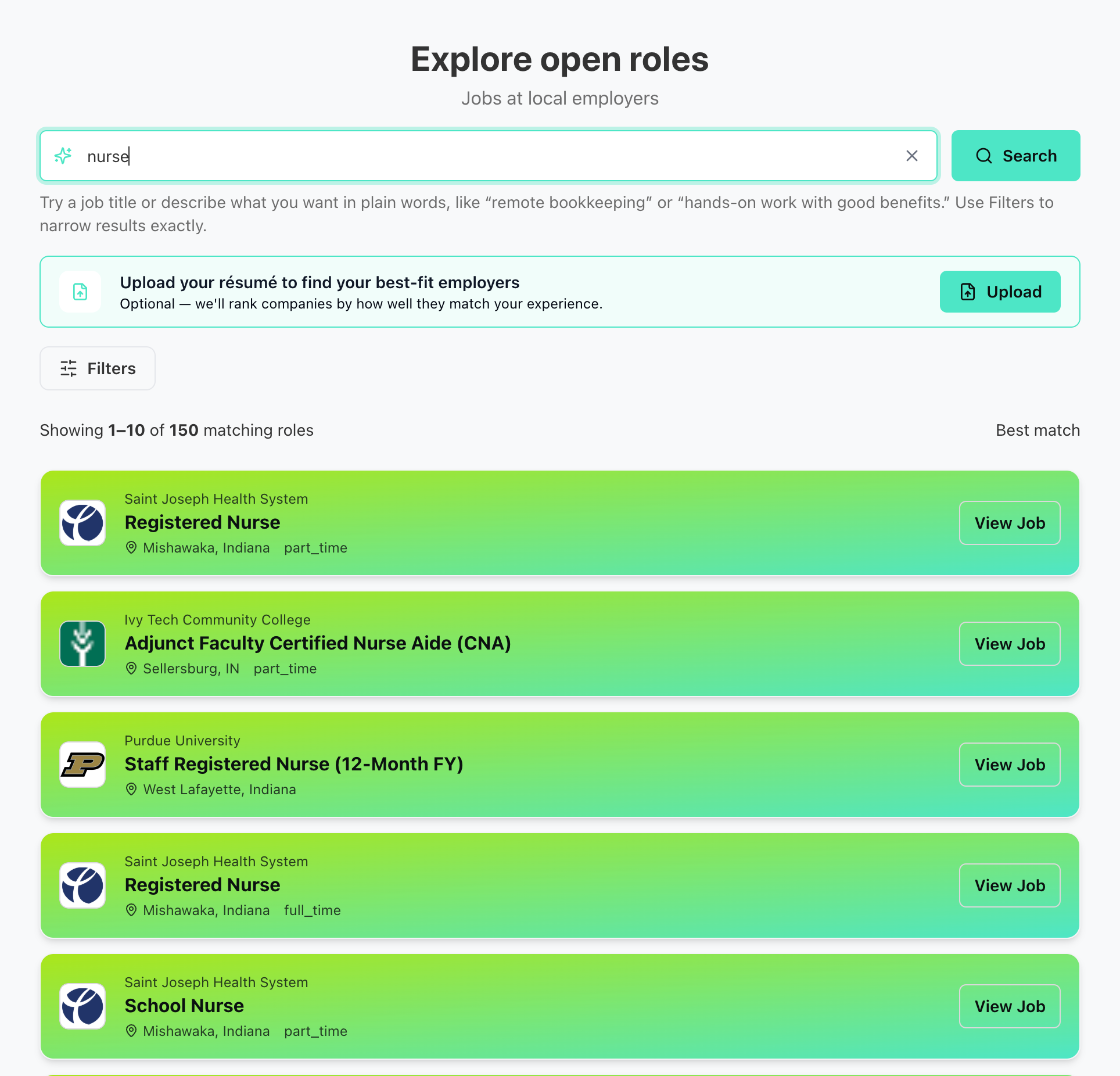
Smarter Search Results - When someone searches your board, jobs with that word in the title now come first. Search "cook" and Prep Cook and Line Cook rise to the top, ahead of jobs that only mention cooking somewhere in the description. Matching is also stricter about whole words, so "intern" no longer pulls up "international."
Clearer Search Box - The search box now invites visitors to "Describe what you're looking for," with a short helper line underneath. The Jobs and Companies tabs each get their own tip, so visitors know they can search in plain language.
Statewide Jobs - Some employers post a job with just a state and no town. Those jobs now appear on your board when your region sits in that state. They're labeled clearly, like "Indiana (statewide)," and they appear after jobs with a town in your region, so local postings stay on top.
More Control for Your Team
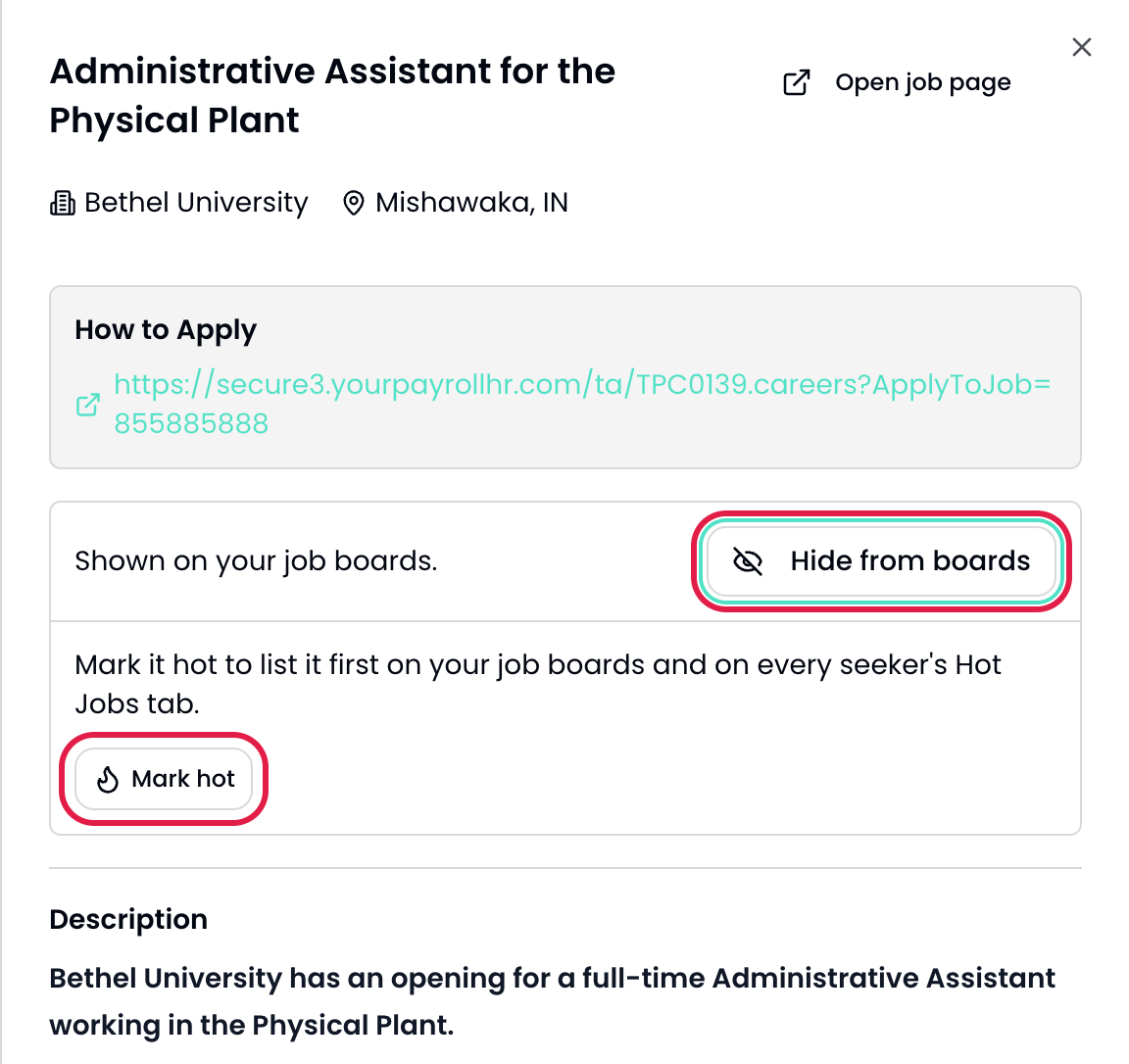
Hide a Job - Sometimes a posting doesn't belong on your board. Now you can hide any job from the Jobs tab with one click. It disappears from your boards, embeds and job seeker links, but it still counts in your analytics, so your numbers stay honest. A Board Visibility filter shows you everything you've hidden, and you can unhide a job anytime.
Hot Jobs - Want to put a spotlight on a role? Mark it hot. Hot jobs get a flame badge and move to the top of your board. Companies with hot roles rise on the Companies tab and show how many hot roles they have. You can add a note for your team when you mark a job hot. That note stays private and never appears on your board. If you use the Job Seekers module, your hot jobs also appear on each seeker's Hot Jobs tab.
Admin and Member Roles - You now choose a role when you invite someone to your team. A Member has full access to companies, jobs, job boards, job seekers, analytics and organization settings. An Admin can do everything a Member can, plus invite and remove teammates, change roles, and delete the organization. Members run the day-to-day work. Admins also manage who's on the team. The Edit Role dialog now spells this out, so you always know what you're granting.
Turn a Report Link Back On - Last month we introduced shareable company reports. If you turned a report link off, you can now turn it back on, and the same link works again. Expired links tell you when they expired, so you know to create a new one.
See Which Searches Come Up Empty - Your board stats already show how many searches returned no results. Now you can click that number to see which filters and tabs those empty searches came from. It's a quick way to spot what job seekers want and can't find.
Company Relationships
Plenty of employers are part of something bigger. A car dealership belongs to an auto group. A clinic belongs to a health system. Rollie now understands those connections.
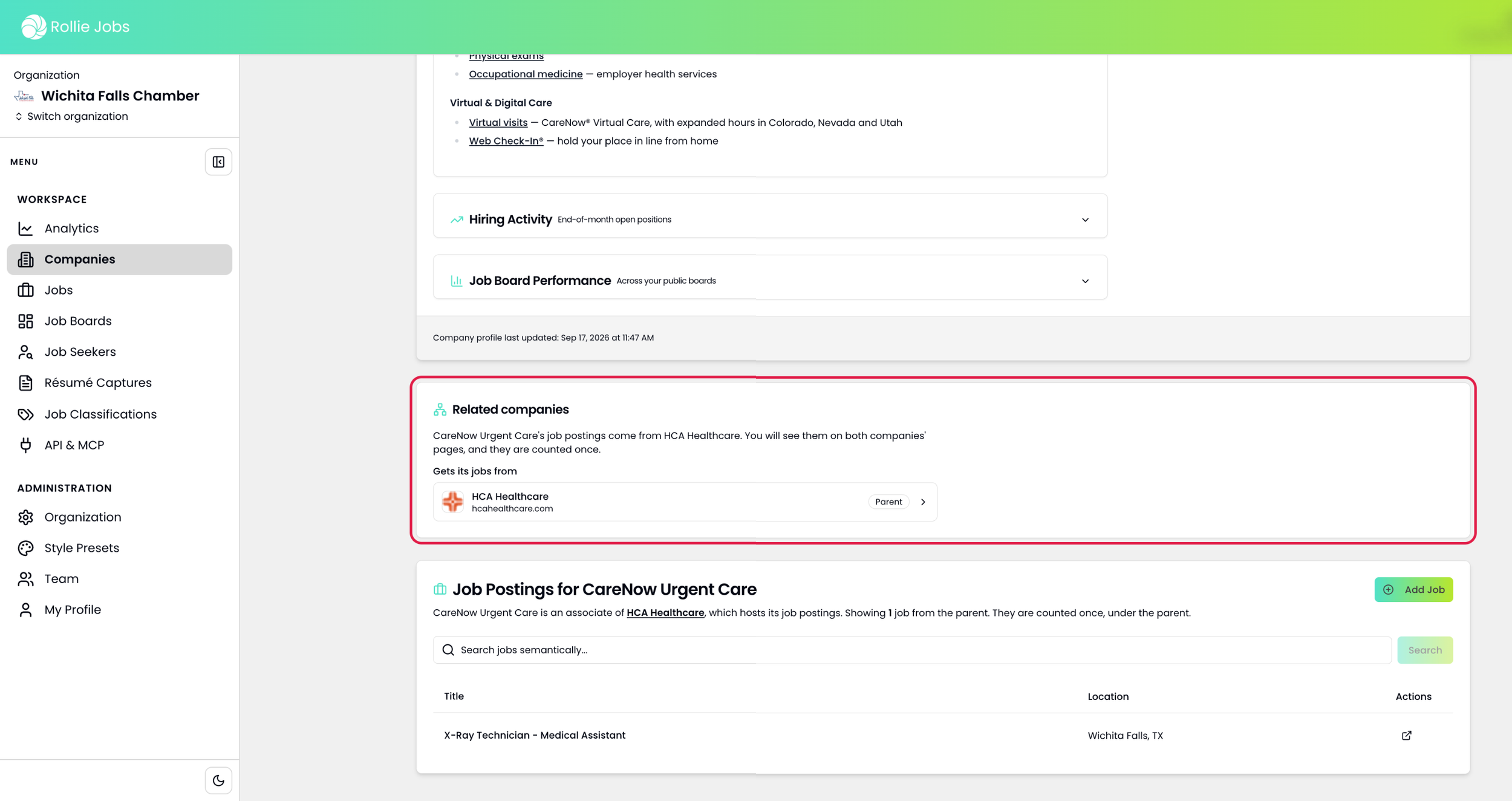
Parent and Associate Companies - A local company can now be linked to its parent. When it is, the local company's page shows the parent's job postings, and each job is counted only once across your board. Any jobs you post directly to the local company still show on its own page.
Related Companies Card - Each company page now shows who that company is connected to: its parent, plus any associates and affiliates you track. Each one links straight to its own page. A badge on your companies list shows these relationships at a glance.
Job Seeker Enhancements
For organizations using the Job Seekers module, this round adds a few things.
Clicked vs. Applied - When a seeker clicks Apply, Rollie now records "Clicked to apply." Seekers then get a checkbox to confirm "I have applied to this job," which records "Applied." Your team can tell the difference between interest and an actual application.
Update a Résumé from the Share Link - Seekers can now replace the résumé you have on file right from their share link. No email back and forth needed.
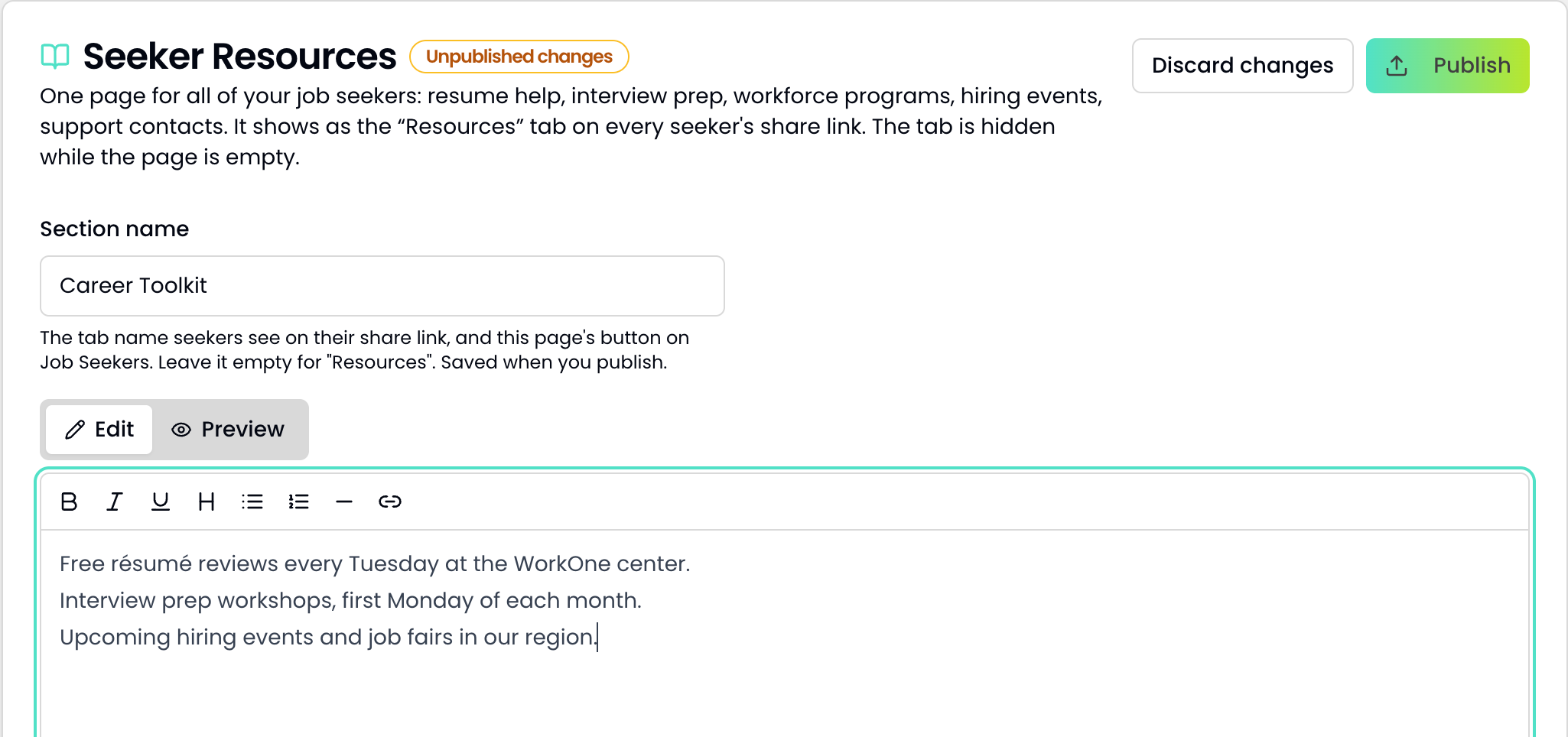
Name Your Resources Page - You can now rename the Seeker Resources section to whatever fits your program, like "Career Toolkit" or "Training Partners." The new name shows everywhere seekers and staff see it.
AI Connector
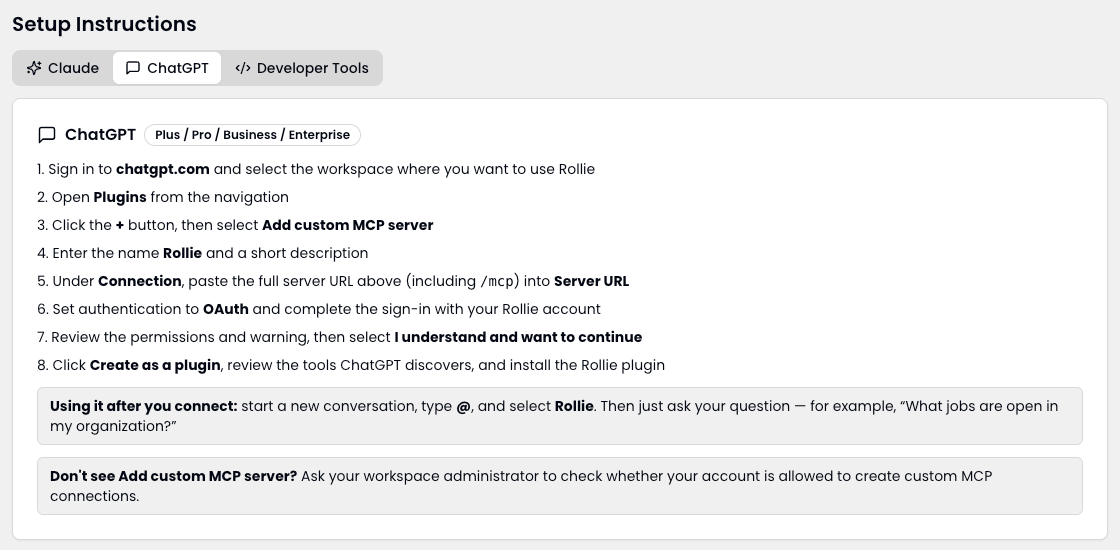
Updated ChatGPT Setup - ChatGPT changed how custom connectors are added, so we updated the setup steps on your Connect page to match. The Rollie MCP integration now goes in through ChatGPT's Plugins menu, and the connector is simply named "Rollie" in both Claude and ChatGPT.
See It in Action
The best way to see any of this is to log in and look around. Try a search on your board, mark a job hot, or open a company page to see its relationships.
And if you have questions about anything here, just reach out to info@rolliejobs.com. We're always glad to hear from you.